Monthly Spending Tracker: How to Track Spending by Bucket
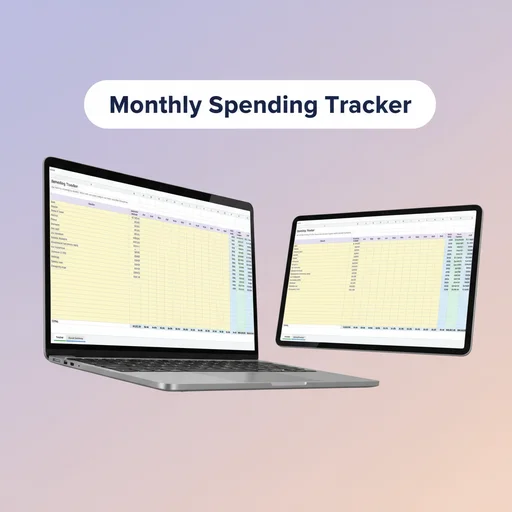
A monthly spending tracker compares what you planned to spend in each bucket with what you actually spent. That difference is where a budget improves. This guide shows what to track, how to set it up in Google Sheets or Excel, and a routine that takes about ten minutes a month.
Why track at all
A budget is a set of guesses. Tracking turns guesses into facts. After a month or two you learn things like:
- Groceries are 30 higher than planned every month. The plan was wrong, not you.
- Dining out went over only in the week of a birthday.
- A subscription you forgot about charged you again.
None of this needs to feel like auditing yourself. It is just feedback.
What to track
For each bucket, per month:
| Column | Meaning |
|---|---|
| Bucket | The name, such as Groceries or Car costs |
| Category | The group it belongs to |
| Planned | The amount you planned for this month |
| Actual | What you really spent |
| Difference | Planned minus actual |
| % used | Actual divided by planned |
| Status | Under, on track or over |
Below the columns, a total row shows planned versus actual for the month.
Where the planned amounts come from
If you budget by bucket, the planned amount is the bucket's monthly figure. A weekly bucket is its weekly amount times the number of weeks, and a yearly bucket is its yearly amount divided by 12 (or the per-paycheck amount times the paychecks in that month). Keeping the plan and the tracker in one workbook avoids typing the numbers twice. See what is bucket budgeting for how to set up buckets.
How to record actual spending
Pick a method and stick to it:
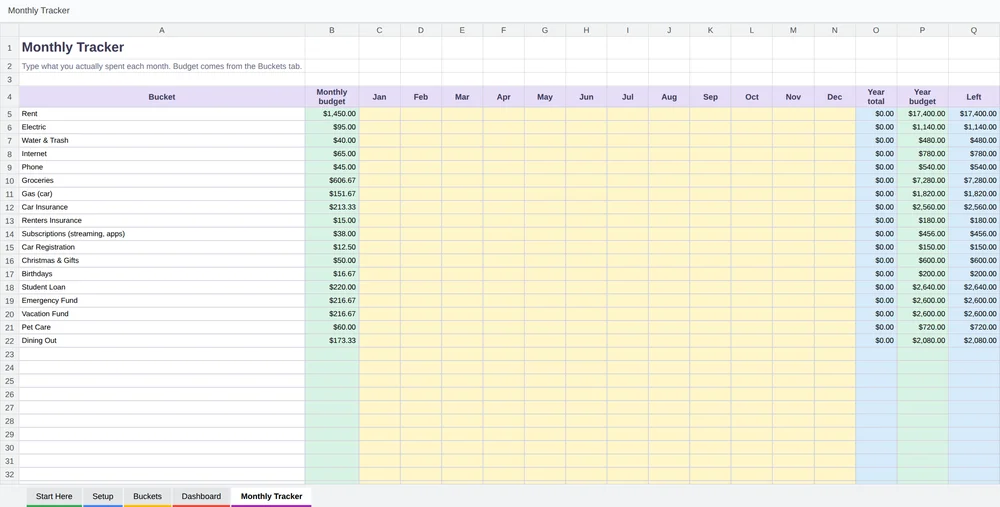
- From your bank and card statements. Once a month, go through the transactions and add them up by bucket. It is accurate and quick if you have few categories.
- As you go. Enter each purchase when it happens. It gives instant feedback but takes more discipline.
- Weekly. Once a week, sort the last seven days into buckets. A good compromise.
Whichever you pick, keep the number of categories small. If sorting takes more than ten minutes, simplify. A list to choose from is in the budget categories list.
A ten-minute monthly routine
- Open the month's tab. Check that planned amounts are right.
- Enter the actual totals for each bucket from your statements.
- Look at the difference column. Which buckets are over, and by how much?
- Ask why. Was the plan unrealistic, or was it a one-time event?
- Adjust one or two amounts for next month.
- Move leftover money to a goal or savings bucket if you have some.
A sample month
| Bucket | Planned | Actual | Difference |
|---|---|---|---|
| Groceries | 520 | 560 | −40 |
| Dining out | 150 | 120 | 30 |
| Gas | 180 | 165 | 15 |
| Utilities | 210 | 205 | 5 |
| Fun money | 120 | 150 | −30 |
| Total | 1,180 | 1,200 | −20 |
The month is slightly over. The groceries pattern is worth watching over a few months before raising the amount. The numbers are examples.
The yearly view
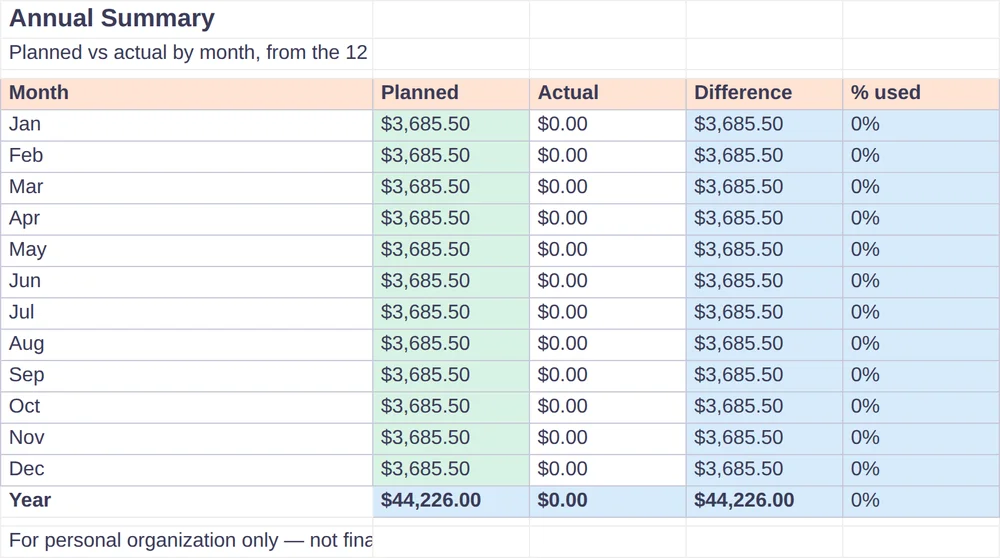
Once you have several months, a yearly summary shows planned and actual per month, so you can see seasons: higher utilities in winter, heavier spending in December. Those patterns feed next year's plan and your annual buckets. See the budget reset checklist for a way to refresh your plan when it no longer fits.
Shared tracking for couples
If two people share a budget, the tracker works the same, with a clear rule about who records what. In Google Sheets, both can open the same file and see live numbers. A template that separates shared and personal buckets keeps the discussion focused. See the budget template for couples.
Mistakes to avoid
- Tracking everything in detail on day one. Start with a few buckets.
- Treating overspending as failure. It is information.
- Skipping months. Gaps break the pattern.
- Changing the plan constantly. Adjust after a month of data, not after a single day.
Monthly tracking in Bucket Budget Planner
Bucket Budget Planner includes a tab for each month of the year. Each tab lists your buckets with the planned amount pulled from the Buckets tab, a column where you type the actual amount, and the difference, the percentage used and a status for each bucket. An Annual Summary tab shows planned versus actual by month, with a chart. Since it is all plain formulas without macros, it works in Google Sheets, including on the phone app, and in Excel. A Quick Start Guide explains how to import the file.
A separate, standalone Monthly Spending Tracker file also exists as an optional add-on. It is not part of the main download, and the monthly tabs described above are enough to get started.
This guide is general information, not financial advice.