Google Sheets Budget Template: How to Choose One That Lasts
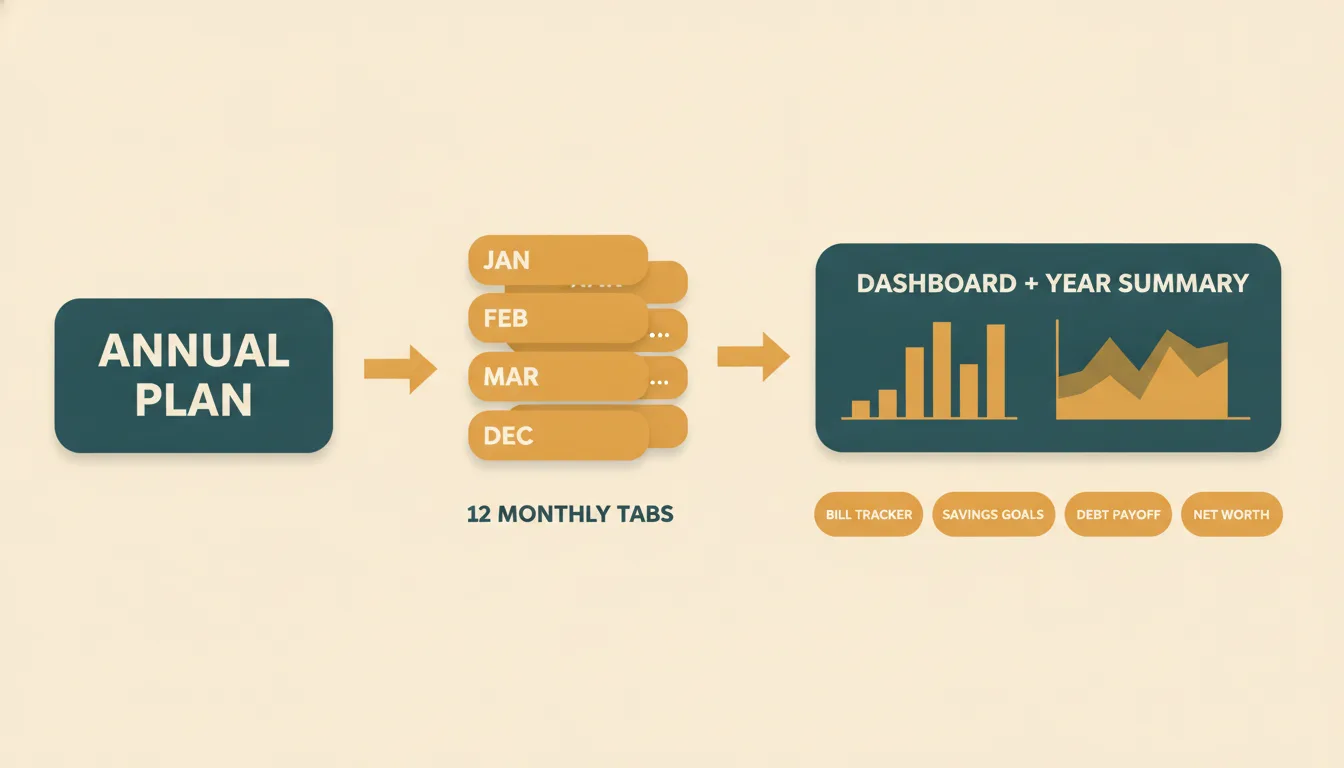
A good Google Sheets budget template does three things: it lets you plan the year, it records what you actually spend, and it shows the gap between the two without you writing formulas. Most templates you find online cover only the second part, a single month with a few rows. That works for a week and then falls apart. This guide explains what to look for, how to set one up, and which mistakes make people abandon their spreadsheet by February.
What a budget template needs to do
Before you download anything, decide what question you want the spreadsheet to answer. Most people who search for a template want one of these:
- Where does my money go? You need a transaction log with categories.
- Am I on track this month? You need planned versus actual amounts per category.
- Where will I be by December? You need a yearly view that rolls up all twelve months.
- Will I be able to afford a goal? You need savings goals or a debt payoff plan that react to what you enter.
A one-sheet template answers the first question only. If you want all four, look for a workbook with several linked tabs.
The tabs worth having
| Tab | What it does | Why it matters |
|---|---|---|
| Annual plan | Income, bills, savings and debt set once for the year | You decide amounts one time instead of every month |
| Monthly tabs (Jan–Dec) | A transaction log and planned versus actual per category | This is where daily use happens |
| Dashboard | Totals and charts across the year | You see trends without adding anything up |
| Bill tracker | What is due, paid and coming | Late fees are the easiest money to save |
| Savings goals | Small monthly amounts toward named goals | Goals stop being "someday" |
| Debt payoff | A schedule for paying off balances | A date is more motivating than a vague plan |
| Net worth | Assets minus liabilities, updated monthly | Shows progress that a monthly budget cannot |
You do not need all of them on day one. But a template that already has the structure saves you from rebuilding it later.
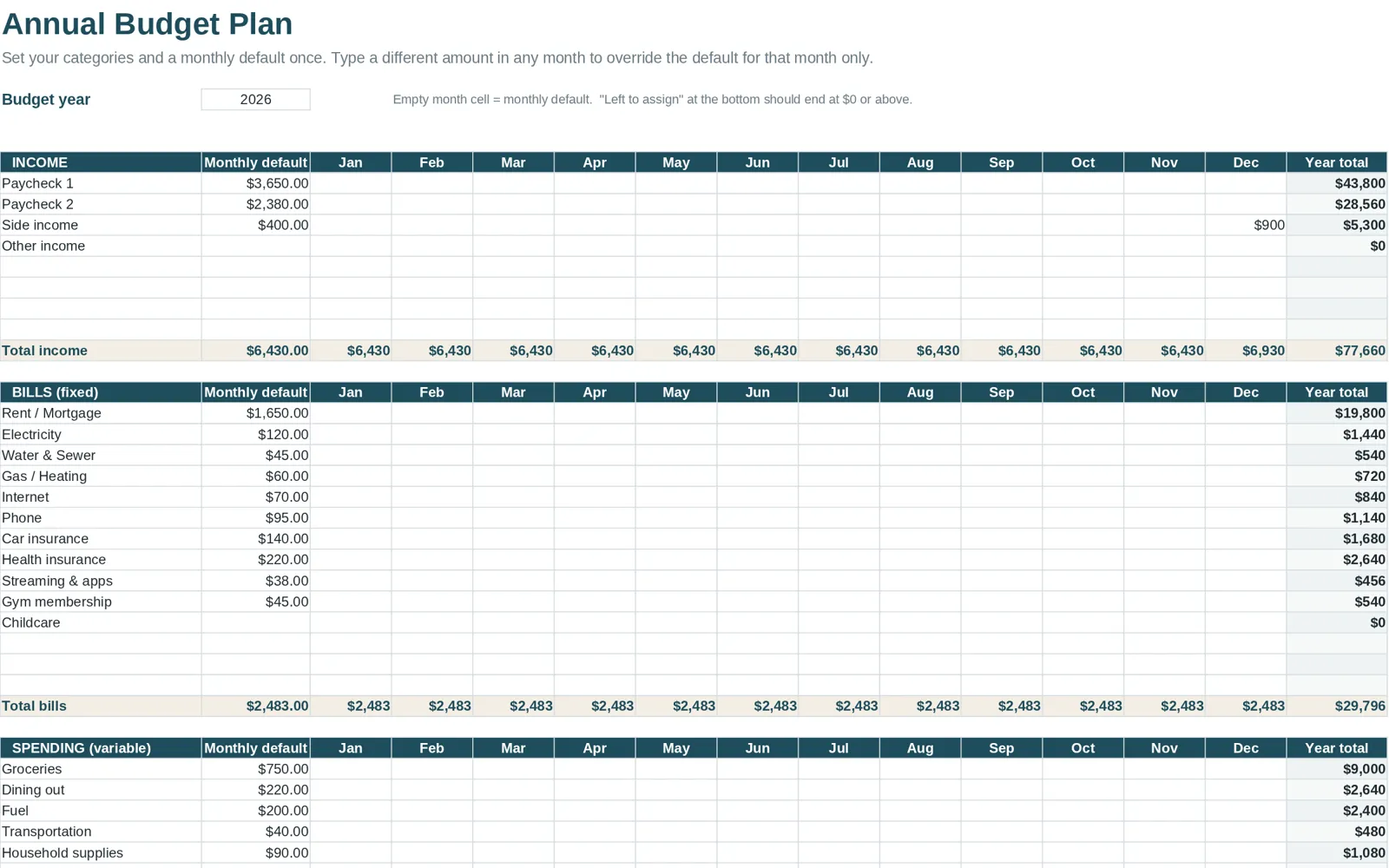
How to set up any template in Google Sheets
- Make your own copy. If the file is shared with you, use File > Make a copy. If it is an .xlsx file, upload it to Drive or use File > Import, then choose to replace the spreadsheet or create a new one.
- Look at the example first. A filled-in example shows what each column is for. It is faster than reading instructions.
- Enter fixed numbers once. Rent, loan payments, subscriptions and your take-home pay go in first.
- Set a planned amount for each variable category. Use last quarter's bank or card statements rather than guesses. See how to make a budget spreadsheet for a method.
- Log spending weekly. A short, regular session beats a monthly marathon.
Questions people ask on forums
People who add "reddit" to this search are usually looking for honest answers rather than polished ads. The same concerns come up again and again:
- "Will my formulas break?" They can if you type over a formula cell or insert rows outside the range. Keep a clean backup copy and only type into input cells.
- "Is a spreadsheet more work than an app?" It is more manual, but you control the categories, there is no subscription, and your history does not depend on a company staying in business.
- "How detailed should I get?" Fewer categories than you think. Ten to fifteen is enough for most households.
- "What if my partner and I both use it?" Share the file and agree on who logs what, or use one person as the weekly updater.
Simple versus complete: which should you pick?
A simple template with one monthly sheet is a fine start if you only want to see your spending for one month. Choose a more complete workbook when:
- you want a yearly picture, not just this month;
- you have debt you want to pay down on a schedule;
- you want to track savings goals and net worth alongside spending;
- you want your history for the whole year in one file.
For a side-by-side look at the options, see the best budget spreadsheets compared.
Mistakes that make templates fail
- Too many categories. Forty rows to fill in each week is a recipe for quitting.
- No plan, only tracking. Without planned amounts you can only look backward.
- Logging once a month. You forget purchases, and the numbers feel like homework.
- Editing the formulas. Customize labels and categories, not the math.
- Skipping the example. You learn the layout in two minutes by looking at filled-in data.
What Clear Budget Planner includes
Clear Budget Planner is built as a workbook for the full-year approach described above. It has 21 tabs: a Dashboard, an Annual Plan, twelve monthly tabs from January to December with room for up to 150 transactions each, a Year Summary, a Bill Tracker, Savings Goals, a Debt Payoff tab and a Net Worth tab. The Debt Payoff tab can switch between the Snowball and Avalanche methods and shows a payoff date and total interest.
You receive a blank workbook and a filled-in example, plus a Getting Started guide that shows how to open the file in Google Sheets or Excel. It is a one-time purchase, not a subscription. For a closer look at the layout, read the sample budget spreadsheet walkthrough.
Your next step
Pick the question from the top of this page that matters most to you right now, set up a template that answers it, and commit to a 15-minute weekly check-in. If you want to stay in a monthly view first, the monthly budget template guide shows how plan versus actual works.