How to Open an Excel File in Google Sheets (and Check It Worked)
To open an Excel file in Google Sheets, upload the .xlsx file to Google Drive and open it with Google Sheets, or use File > Import inside a Sheets document. The whole process takes under a minute. What takes longer is checking that your formulas, formatting and charts came through, so this page also includes a short checklist.
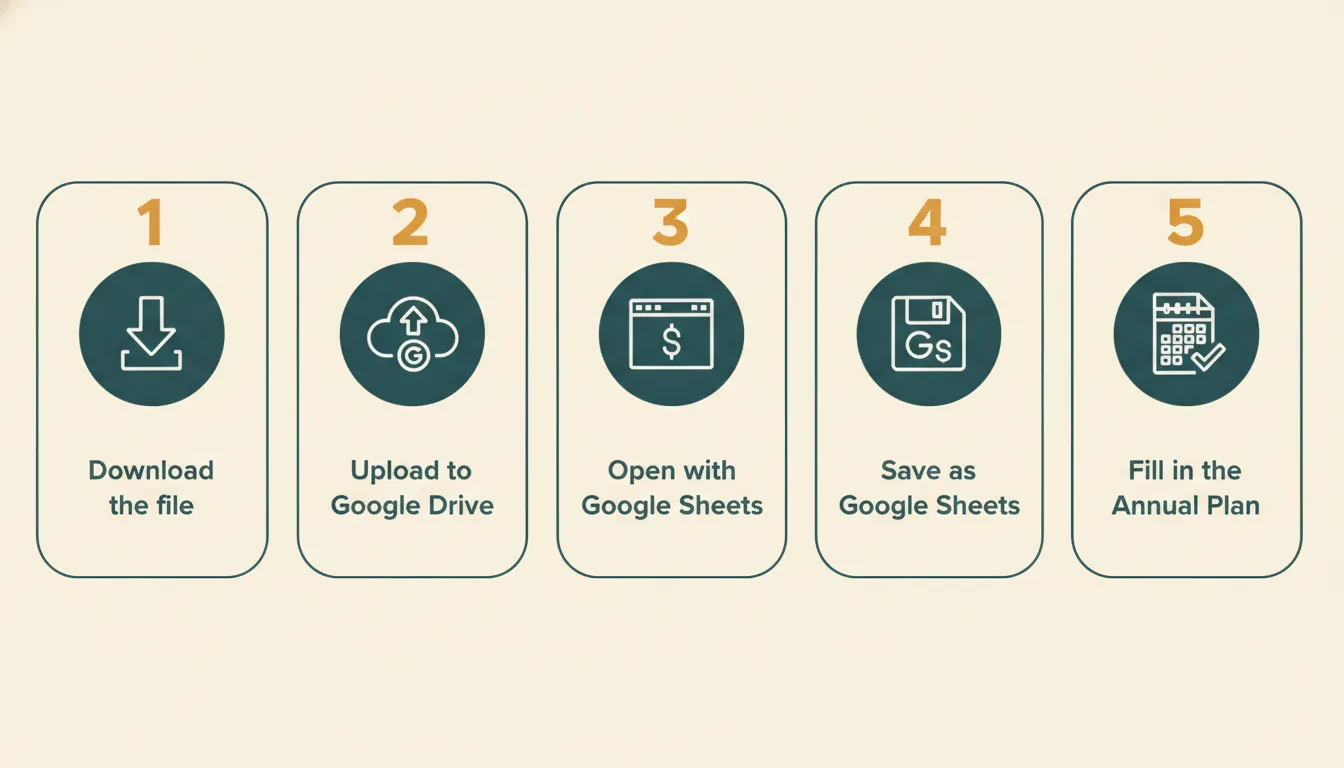
Method 1: Upload to Drive and open
- Go to Google Drive and sign in.
- Click New, then File upload, and choose your .xlsx file.
- When the upload finishes, double-click the file. It opens in a preview or in Excel-compatibility mode.
- If you see an option such as Open with > Google Sheets, choose it.
- In the Sheets view, use File > Save as Google Sheets to create a native copy.
This keeps the original .xlsx in Drive and gives you a separate Google Sheet to work in.
Method 2: Import inside a Sheets document
- Open a new or existing Google Sheet.
- Click File > Import.
- Choose the Upload tab, then drag the file in or browse to it.
- Choose how to import:
| Option | What it does | Use when |
|---|---|---|
| Create new spreadsheet | Makes a new Sheet from the file | You want a separate copy |
| Insert new sheet(s) | Adds the file's tabs to your current Sheet | You are combining workbooks |
| Replace spreadsheet | Replaces the current Sheet with the file | You opened a blank Sheet to receive it |
| Replace current sheet | Replaces just the active tab | You want to refresh one tab only |
- Click Import data.
For a workbook with many linked tabs, such as a budget planner, Replace spreadsheet or Create new spreadsheet keeps the tabs together.
Check that everything came across
Open each tab once and look for:
- Formulas: click a few calculated cells and confirm the formula is there. Change a test number and see whether totals update.
- Dropdowns: category lists should still appear in the cells that use them.
- Number and date formats: currency should show as currency and dates as dates.
- Charts: most basic charts appear, but check their titles, colors and data ranges.
- Conditional formatting: colors that change with values, such as red for negative numbers.
- Column widths and frozen rows: these usually come across, but not always.
If something is off, reopen the original .xlsx and compare. Complex features, macros and some chart types may not convert exactly.
Common problems and fixes
| Problem | Likely cause | Fix |
|---|---|---|
| Formulas show #REF! or #NAME? | A function or reference is not supported | Check the formula and replace the unsupported part |
| Dates look like numbers | The cell format did not convert | Select the cells and apply a date format |
| A dropdown is missing | Data validation did not carry over | Recreate it with Data > Data validation |
| Charts look different | Style differences between programs | Edit the chart in Sheets |
| File will not upload | File is too large or damaged | Re-download the file and try again |
Going the other way: Sheets to Excel
If you need to move back, open the Google Sheet and choose File > Download > Microsoft Excel (.xlsx). Keep one version as your working copy to avoid editing two files at once.
Working on a phone
The Google Sheets app opens Sheets files and can open .xlsx files saved in Drive. For data entry, a phone works well. For setup, such as changing formulas or categories, a computer is easier.
Keep a clean copy
Before you start changing anything, save a copy of the original, unedited file. If a formula breaks, you can recover it. Name copies by date so you know which is which.
A budget workbook that comes with these steps
Clear Budget Planner is delivered as .xlsx workbooks that open in Excel or import into Google Sheets. The Getting Started guide included with it shows the steps for both, with the clicks for Google Sheets (File > Import > Upload, then Replace spreadsheet) and for Excel. The planner has 21 tabs, and the order includes a blank workbook and a filled-in example, so you can see how it works before entering your own numbers.
Once it is open, browse the Google Sheets budget template guide for setup tips, or read the budget spreadsheet guide to decide how to structure your categories. To see what a filled-in file looks like, visit the sample budget spreadsheet page.