Budget Spreadsheet: How to Build and Use One in Excel or Google Sheets
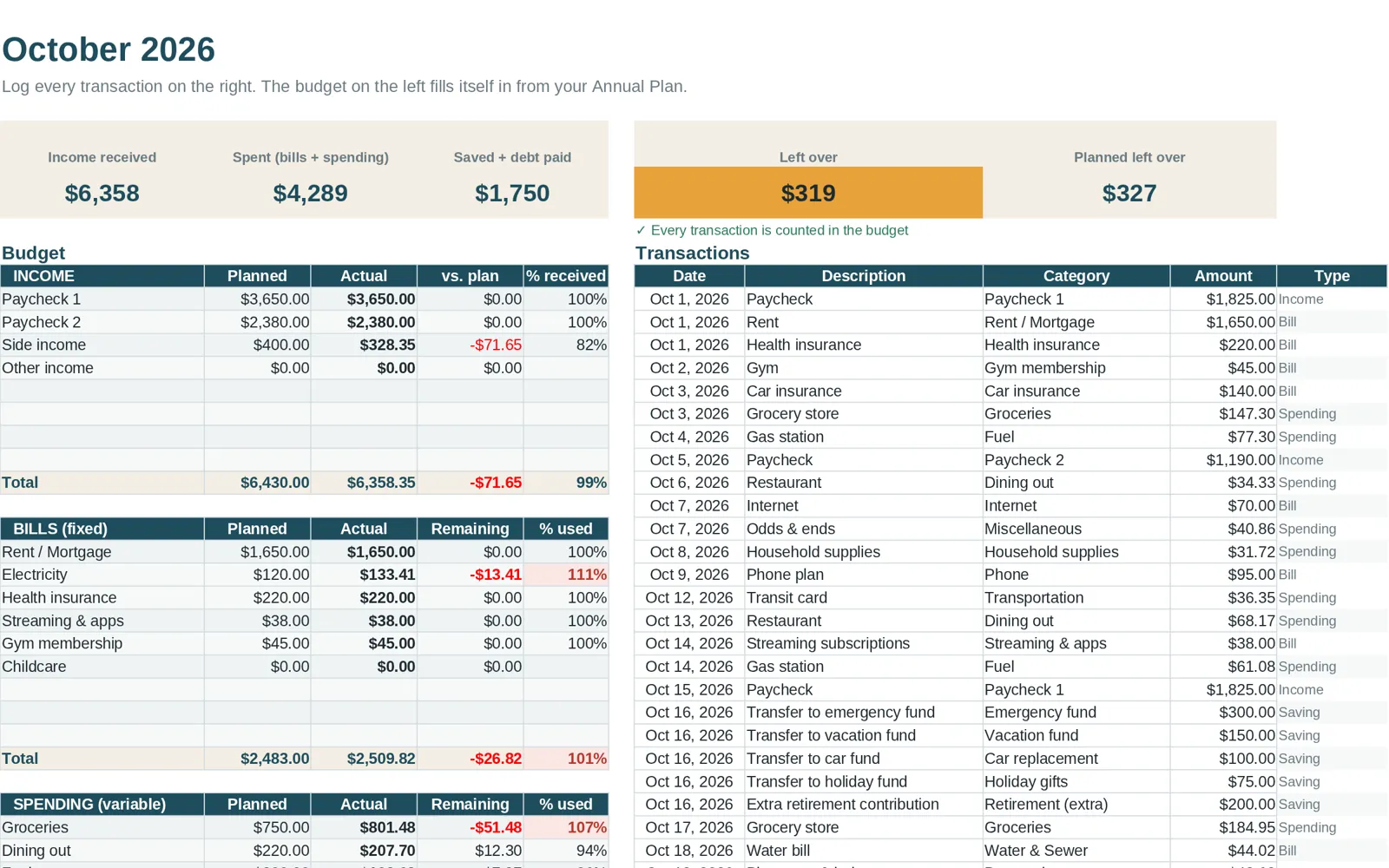
A budget spreadsheet is a file that holds your planned spending, your actual spending and the difference between them, so you can see where your money goes and adjust. You can build one yourself in Excel or Google Sheets or start from a ready-made template. Either way, the same few parts make the difference between a spreadsheet you use for a year and one you open twice.
The parts of a working budget spreadsheet
1. Income and fixed costs
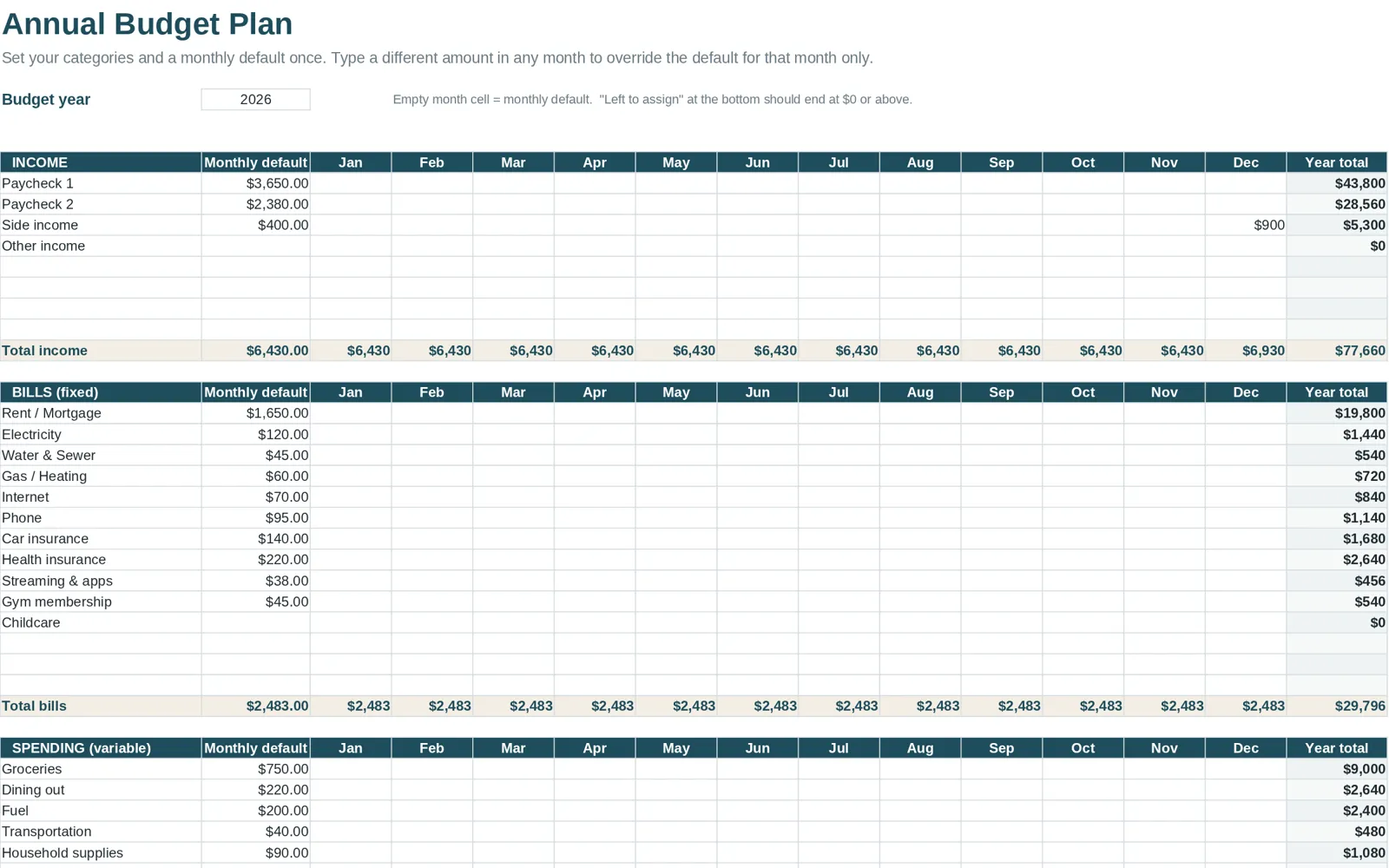
List your take-home pay and the bills that do not change much: rent or mortgage, utilities, insurance, loan payments and subscriptions. These are the numbers you set once.
2. Variable categories with a planned amount
Groceries, gas, dining out, personal spending and similar. Give each a planned amount for the month. A plan is what lets you compare, so do not skip it.
3. A transaction log
One row per purchase: date, amount, category and a short note. This is the part you touch weekly.
4. Planned versus actual
For each category, the spreadsheet should show what you planned, what you have spent and what is left. This is the single most useful view in the file.
5. A summary
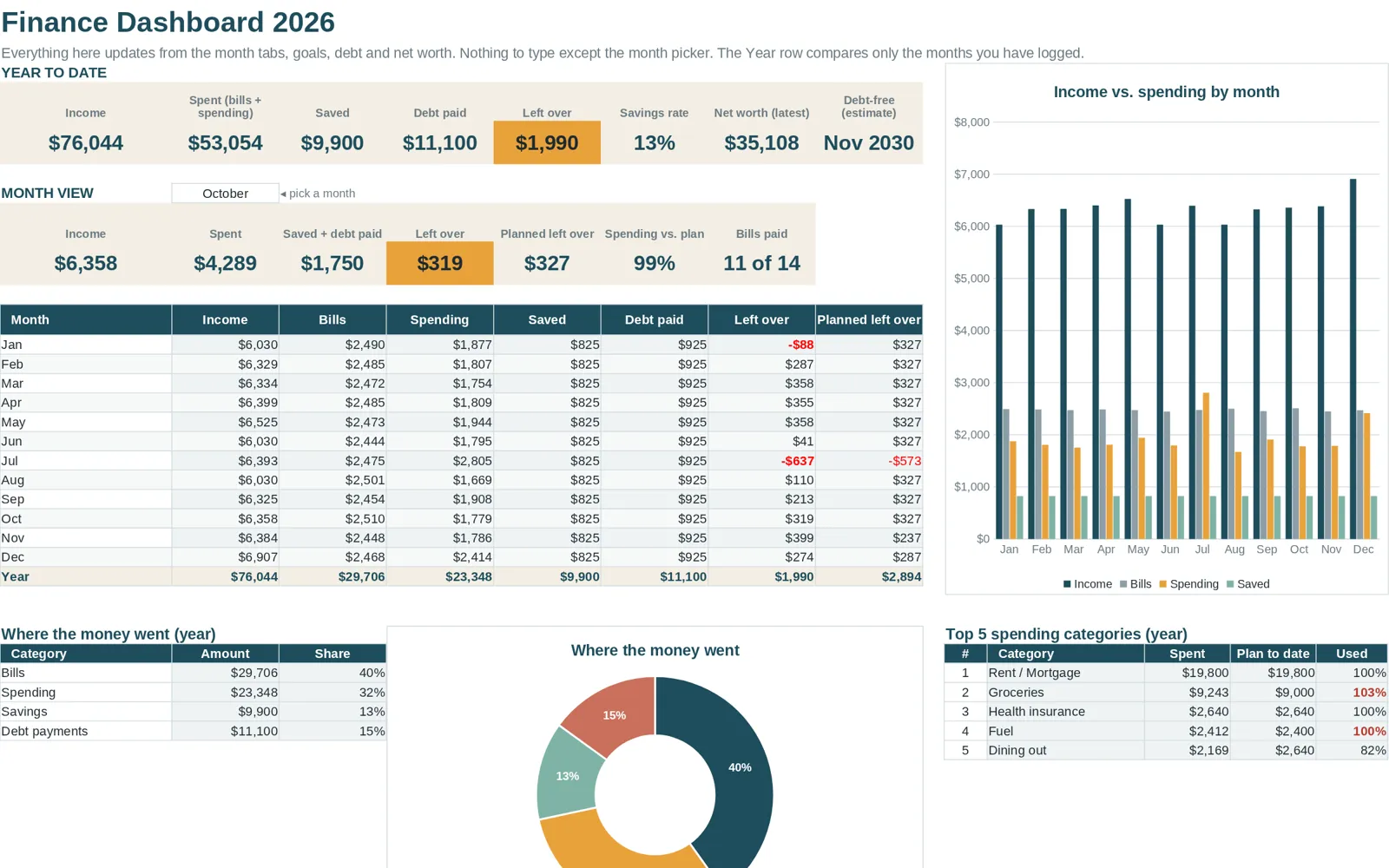
Totals by category, by month and for the year. Charts help you see trends at a glance, but the numbers matter more than the colors.
Excel or Google Sheets?
| Excel | Google Sheets | |
|---|---|---|
| Where files live | On your computer or a cloud drive of your choice | In Google Drive |
| Best for | Desktop use, larger files, offline work | Phone access, sharing with a partner |
| Using an .xlsx template | Opens directly | Import through File > Import |
| Cost | Needs Excel installed | Works in a browser with a Google account |
An .xlsx file is the common ground. A template saved in that format opens in Excel and can be imported to Google Sheets. After importing, open each tab once and confirm the totals look right. If you are moving a file over, how to open an Excel file in Google Sheets walks through it.
Build your own or start from a template?
Building your own gives you full control and teaches you how the formulas work. It also takes hours, and formulas tend to break when you add rows or change categories.
Starting from a template gets you to the first transaction in minutes. The trade-off is that you adapt to the template's layout. Choose one with a filled-in example so you can see how it behaves before you enter your own data.
If you want to build from scratch, follow how to make a budget spreadsheet. If you would rather compare ready-made options, see the best budget spreadsheets.
Choosing between one sheet and a workbook
A single-sheet budget is easy to start and easy to outgrow. It shows one month, so you lose history when you clear it, and it cannot show how the year is going. A workbook with one tab per month keeps everything in one file and adds a summary that totals the twelve months. If you only ever want a snapshot of this month, one sheet is fine. If you want to know in October whether you are on track for the year, you need the workbook.
Whichever you choose, keep the layout boring. Plain columns, one category dropdown and one summary are easier to maintain than clever dashboards, and a boring file that you update beats a beautiful one that you do not.
A weekly routine that works
- Pick one fixed time each week and set a reminder.
- Download or copy your recent transactions from your bank or card statements.
- Enter them in the log with the right category.
- Look at the categories where you are close to your plan. Decide what to adjust.
- Close the file. Total time: about 15 minutes.
The point of the routine is that it is small. People who try to reconcile everything daily usually quit.
How to read your numbers
- Over plan in one category once: usually noise. Check whether the plan was realistic.
- Over plan in the same category three months in a row: the plan is wrong, not you. Raise it and take the money from somewhere else.
- Always under plan in a category: move that money to savings or debt.
- Many small purchases in "miscellaneous": split that category so you can see what is inside it.
Common mistakes
- Planning with the amount you wish you spent rather than the amount you have been spending.
- Tracking income as a single yearly number and ignoring uneven months.
- Forgetting irregular costs such as car repairs, gifts and annual subscriptions. A yearly view makes these visible; see the yearly budget template guide.
- Using so many categories that the log feels like a second job.
What is inside Clear Budget Planner
Clear Budget Planner is a 21-tab workbook for Excel and Google Sheets. It has a Dashboard, an Annual Plan, twelve monthly tabs with room for up to 150 transactions each, a Year Summary, a Bill Tracker, Savings Goals, Debt Payoff with Snowball and Avalanche methods, and a Net Worth tab. You get a blank workbook and a filled-in example, plus a Getting Started guide for opening the file in Google Sheets or Excel. It is a one-time purchase.
Where to go from here
If you are just starting out, budgeting for beginners explains the basics in plain language. If you already have a file open and want to see what a finished one looks like, the sample budget spreadsheet page shows each tab.