Paycheck Planner: What to Look For and How to Use One
A paycheck planner assigns each paycheck to the things it must pay before the next one arrives. Instead of asking "what does the month cost?", it asks "what does this payday cover?" This guide explains how to judge a paycheck planner, how to build a basic one yourself, and what the tool in this guide offers.
What a paycheck planner does
A monthly budget groups costs by month. That works if you are paid once a month and your bills line up with payday. For everyone else, timing matters:
- Rent is due on the 1st, and your paycheck arrives on the 3rd of the month.
- Your phone bill is due on the 12th, between paychecks.
- A yearly premium is due in March, and you do not want to find the money in March.
A paycheck planner solves this by placing each cost on the paycheck that precedes it, and by setting aside part of every paycheck for bills that are further away.
A checklist for comparing planners
Whether you are looking at a spreadsheet, a printable or an app, ask:
| Question | Why it matters |
|---|---|
| Does it support my pay schedule (weekly, biweekly, semi-monthly, monthly)? | The number of paychecks per year changes every amount |
| Does it convert bills to a per-paycheck amount? | That is the number you need on payday |
| Can it handle yearly and quarterly bills? | These are the usual budget breakers |
| Does it show what is left after all bills? | One clear number tells you whether the plan works |
| Can I see which bills a paycheck covers? | Shows timing problems before they happen |
| Does it handle uneven income? | Matters if your pay varies |
| Does it work where I use it (phone, Google Sheets, Excel)? | A tool you cannot open is not used |
| Does it need macros or add-ons? | Plain formulas are easier and safer |
| Can I see actual spending against the plan? | Plans improve with feedback |
No tool will tick every box for everyone. Decide which three or four matter most to you.
Build a basic one yourself
Here is a simple structure for a spreadsheet:
- Row of paydays. List your next 6 to 8 paydays across the top.
- Income row. Enter your take-home pay under each date.
- Bill list. Down the left, list each bill with its amount and due date.
- Assignment. For each bill, put the amount under the paycheck that comes before its due date.
- Savings for later bills. For yearly bills, put a small amount under every paycheck.
- Left over row. Income minus assigned amounts for each paycheck.
If a column shows a negative left over, that paycheck is short. You can move a bill to a different paycheck, change the amount, or look at the spending money in that period.
Example for one paycheck
A biweekly take-home pay of 1,900, with bills due in the following two weeks:
| Item | Amount |
|---|---|
| Rent | 1,300 (split: 650 from this paycheck, 650 from the next) |
| Electric | 90 |
| Phone | 70 |
| Car insurance | 100 |
| Groceries | 240 |
| Gas | 90 |
| Set aside for yearly bills | 110 |
| Savings | 120 |
| Spending money | 130 |
| Total | 1,600 |
| Left over | 300 |
Not every rent split is practical, since many landlords need the whole amount on one date. In that case, the split above represents setting money aside across two paychecks so that it is ready on the due date. The left-over amount of 300 could go to extra debt payments, savings or a buffer. The numbers are illustrative.
Planner or spreadsheet budget: which do you need?
A paycheck planner works well if you:
- are paid weekly or biweekly,
- have several bills that fall on awkward dates,
- find that monthly budgets leave you short before payday.
If your pay arrives once a month and your bills follow it, a plain monthly budget may be enough. A hybrid is common: use buckets to turn every bill into a per-paycheck amount, and a planner view to place the due dates.
How Bucket Budget Planner works as a paycheck planner
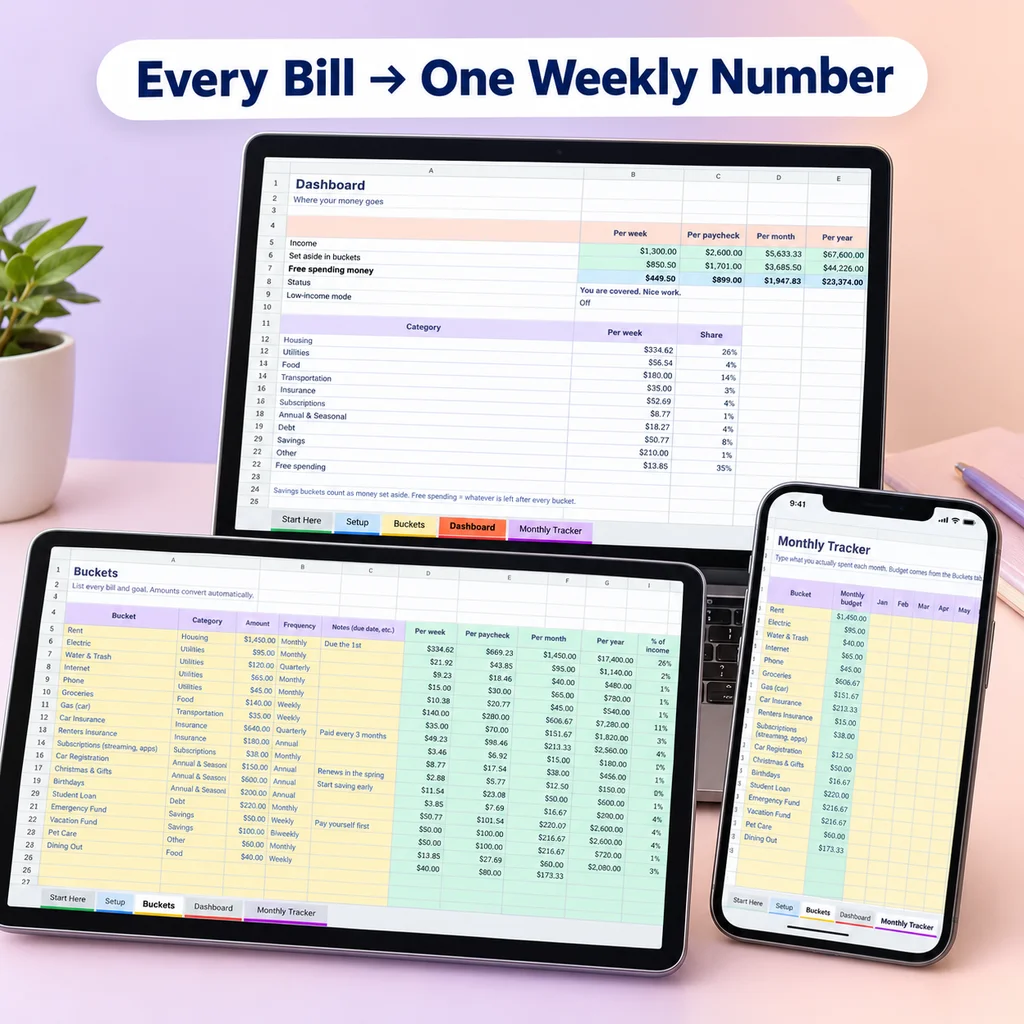
Bucket Budget Planner is a bucket budget with a paycheck view. On the Setup tab you choose how you are paid (weekly, biweekly, semi-monthly or monthly) and list your income sources, each with a usual amount and, if your pay varies, a low month amount. On the Buckets tab, each bill or goal has an amount and a frequency, and the sheet converts it to a per-week, per-paycheck, per-month and per-year amount. The Dashboard shows total income, total set aside and what is left to spend per week and per paycheck.
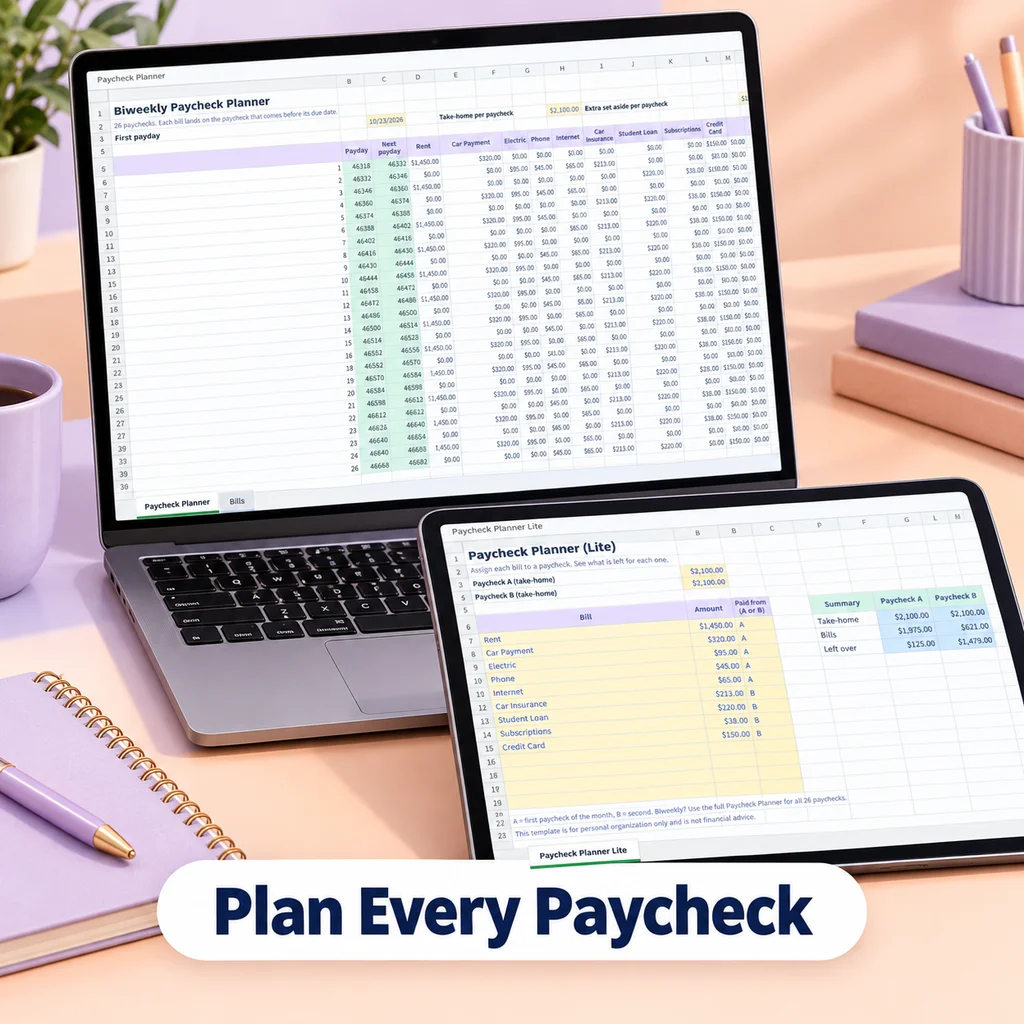
For timing, the included web app has a Paycheck Splitter: you pick the date of your next paycheck, and it shows which bills that paycheck covers, based on due dates and your pay frequency. Monthly tabs let you compare planned and actual spending.
A dedicated Biweekly Paycheck Planner with a column for each of the 26 paychecks exists as a separate, optional add-on. It is not part of the main download, and you do not need it to use the method described here.
Setting up a routine
- Once: enter your income, pay schedule and bills.
- Each payday (5 minutes): move or reserve the per-paycheck amounts, pay the bills due before the next payday.
- Mid-period (2 minutes): check your spending money.
- Monthly (10 minutes): compare plan and actual. Adjust.
For the method behind it, read how to budget a paycheck. If you are paid every two weeks, how to budget when you are paid biweekly and the biweekly budget template guide go deeper. If part of each paycheck goes to debt, see the debt snowball spreadsheet guide.
This guide is general information, not financial advice.